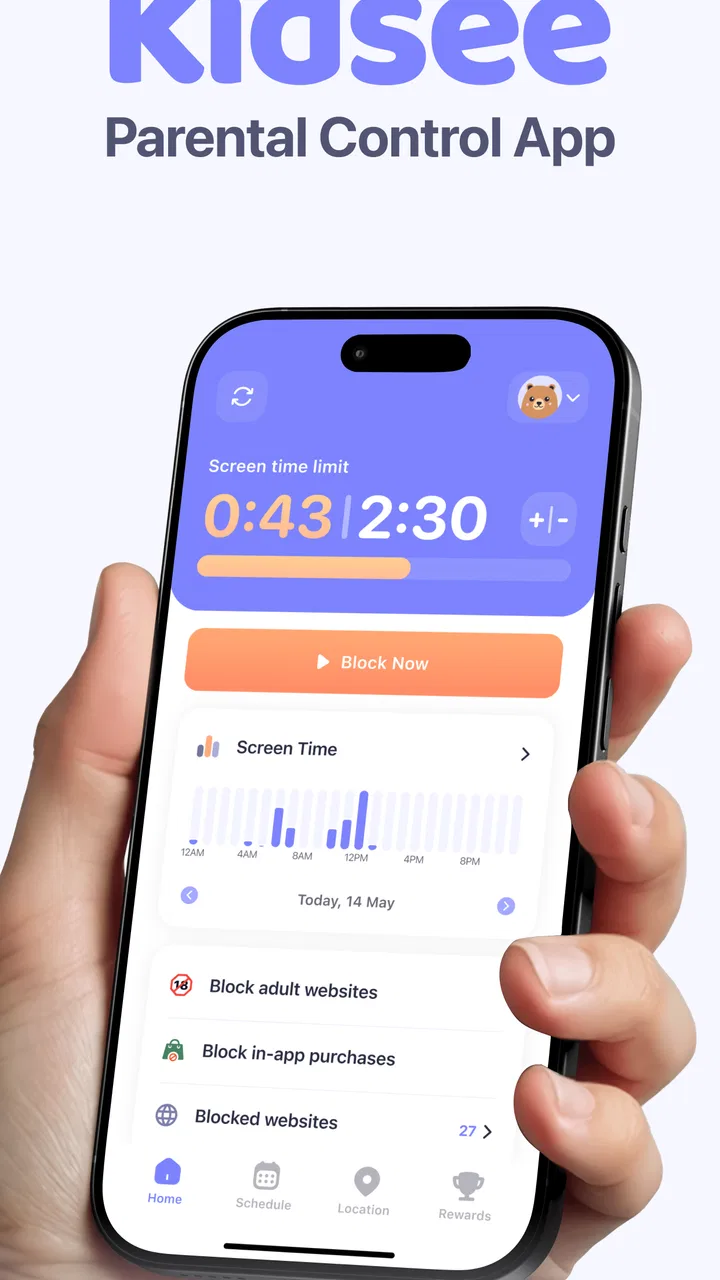
Parental Control App - Kidsee
- 4.3
- Rating
- 100.00K
- Installs
- Free
- Price

 Analysis by App-foxy
Managing a child’s phone usually becomes difficult at the exact moment you need a clear answer: why is an app still available, why did a limit not seem to apply, or why is the location view not updating? I found Kidsee most useful as a central place for those everyday parenting tasks, combining app blocking, screen-time limits, schedules, and location viewing in one parenting tool. It is a free app from Artpoldev, aimed at everyone, although optional in-app purchases range from around three dollars to nearly one hundred dollars per item.
My overall impression is that Kidsee is best approached as a routine-management app rather than a magic solution. It can help a parent create clearer boundaries, but the quality of the result depends heavily on setup, the child’s device settings, and whether the family agrees on how the rules should work. That distinction matters. If you install it expecting one switch to solve every screen-time argument, you may be disappointed. If you use it to support a simple, agreed household routine, it has a more useful role.
Where the first problems usually appear
The most confusing part of a parental-control app is often not the main screen; it is the relationship between a rule and the device on which that rule must operate. A parent may select an app to block, set a time limit, or create a schedule, then assume the result should be immediate everywhere. When the child’s phone behaves differently, the natural reaction is to blame the app. In practice, the first thing I would check is whether the rule was created for the correct child and device.
You May Also Like

 Blood Strike: 2.5 Anniversary
Blood Strike’s Loadouts Turn Every Drop Into a Tactical Gamble
A close look at Blood Strike’s custom loadouts: how fast access to signature weapons reshapes its battle royale rhythm, rewards preparation, and narrows the gap between fights.

 Pandora - Music & Podcasts
Pandora’s Music Is Easy to Start, but Harder to Recover
Pandora’s strength is its low-effort path from a seed to a station. Its weak spot is how much confidence it asks you to place in connection, setup, and quiet recovery.

 8 Ball Pool
 Is Built on Rivalries, Rematches, and Routine
A close look at the rivalries, rematches, shared routines, and unanswered safety questions that turn a quick pool match into a persistent mobile community.

 Samsung Music
’s Quiet Strength Is Playing What You Already Own
Its reach comes less from spectacle than from dependable access to a personal library. That simplicity is both the app’s strongest retention engine and its ceiling.

 AccuWeather: Weather Radar
AccuWeather Review: A Quick, Clear Forecast for Everyday Decisions
For everyday plans, the best forecast is the one you can understand quickly. AccuWeather makes rain timing, radar, and local conditions easy to act on, with a few trade-offs.

 Hill Climb Racing
Why Hill Climb Racing Still Turns Crashes Into One More Run
A tiny car, a bumpy hill and one more upgrade: Hill Climb Racing keeps resurfacing because its simple chaos makes every near-miss feel personal.
More From Our News Desk



Kidsee brings several kinds of control together, so it helps to think of them separately. Blocking an app is a direct restriction. A screen-time limit is a broader allowance. A usage schedule adds a time window. Location viewing is different again: it is about seeing where the device is, not controlling what happens on it. Treating these as interchangeable creates unnecessary confusion. A schedule can be sensible for school nights, while a specific app block may be more appropriate for a game that causes repeated arguments.
I also would not begin by creating a large collection of rules. Start with one clear goal, such as preventing entertainment apps during homework time. This makes it easier to tell whether the setup works. Once that basic workflow is understood, add a bedtime schedule or a separate limit. Building everything at once makes troubleshooting much harder because you no longer know which setting is responsible for the result.
The app’s store summary highlights blocking, screen-time limits, customizable schedules, and location viewing. Those functions make it more flexible than a simple timer, but flexibility brings a small learning curve. Parents who prefer a very minimal control may find a built-in phone setting easier for one narrow task. Kidsee becomes more attractive when you want these different responsibilities handled from one parenting-focused app.
What I would clarify before installing it
Before relying on the app, I would decide what “success” means in your home. Do you want to remove access to one distracting app, reduce total daily use, create a no-screen period, or check a child’s location during a journey? Each objective calls for a different setup. This simple decision prevents the common mistake of using a strict block when a predictable schedule would cause less conflict.
I would also discuss the arrangement with an older child before turning it into a surprise enforcement system. A control tool works better when the child understands whether the rule is about sleep, schoolwork, safety, or family time. Kidsee can organize the boundary, but it cannot replace that conversation. For younger children, a parent may need to handle the process more directly; for teenagers, transparency becomes especially important.
Setup checks that save time later
When I set up any parental-control tool, I use a short sequence instead of rushing through every option. First, confirm that the parent account or control side is connected to the intended child’s device. Next, identify the exact app or category of use that needs attention. Then create one small rule and test it during a convenient period, rather than waiting until bedtime or the start of school.
That test is valuable because it separates configuration problems from timing problems. If a rule is meant to apply at a certain part of the day, check it while you are still able to adjust the setting. If an app is blocked, verify the result on the child’s device rather than assuming that saving the rule completed the job. This is a basic step, but it is one of the most useful habits when dealing with remote controls.
For location viewing, I would treat the first check as a connection test rather than a promise of constant movement. Look for a recent, understandable position and compare it with where the child actually is. If the view seems old or unexpected, do not immediately assume the child has moved or that the app is broken. Check the device connection, whether the phone is switched on, and whether the child is carrying the same device that was configured.
Another practical tip is to keep the first schedule simple. A single evening window is easier to understand than several overlapping periods. If the family later needs different rules for weekdays, weekends, or school holidays, add them one at a time. Overlapping schedules can make the result feel unpredictable even when each individual setting seemed reasonable during setup.
Kidsee is currently listed as version 10.0 and supports devices running Android 7.0 or later. That makes compatibility worth checking before you plan a family-wide rollout, especially if an older phone is being reused for a child. The app was released on February 11, 2025, so I would also keep the app updated through the normal store process when updates are offered. A current version is not a guarantee that every issue disappears, but it removes one avoidable source of trouble.
A realistic family workflow
Imagine a child who uses a phone after school and tends to move from homework into games without noticing the time. I would begin by agreeing on a short study period, then use a schedule aimed at that specific part of the afternoon. I would avoid blocking every app immediately. If the problem is one game, a focused restriction is easier for the child to understand and easier for the parent to evaluate.
After a few days, I would look at whether the routine is actually helping. If the child is still spending too much time on the phone outside the study period, a broader screen-time limit may make more sense. If the issue is mainly late-night use, a bedtime schedule is likely more suitable than a permanent block. This gradual approach uses the app’s different controls according to the problem instead of treating every problem as an app-blocking problem.
For location viewing, I would use it in a separate safety routine, such as checking that a child has arrived at an agreed destination. I would not mix that purpose with discipline. Location information is sensitive, and using it responsibly means being clear about when it is checked and why. The feature can support reassurance during travel, but it should not become a substitute for communication or a reason to monitor every movement unnecessarily.
Recovering when a rule does not seem to work
When a restriction appears to fail, I would resist changing several settings at once. Start with the simplest question: was the correct rule selected for the correct device? Then check whether the current time falls inside the schedule. A rule that is working outside its active period can look broken if the expected result was based on a different time.
Next, compare what you intended with what you actually configured. “Limit phone use” and “block one app” are not the same outcome. A child may still use other applications when one game is blocked, while a general limit may affect a wider pattern of use. Writing down the intended result in one sentence can expose a mismatch quickly: for example, “This game should be unavailable during homework,” rather than “The phone should be controlled.”
If the device does not reflect a new setting, I would check ordinary connection issues before rebuilding the entire setup. Confirm that the child’s phone is powered on, connected, and still associated with the family arrangement. Give the change a moment to reach the device, then reopen the relevant view and test again. Restarting the affected phone can also be a reasonable general troubleshooting step when a device has not refreshed a recent change.
For location, the recovery process should be even more cautious. A position that has not changed may simply be an older update. Check the phone’s connection and battery situation, ask the child whether the device is with them, and compare the displayed location with a known recent event. If the information is important for immediate safety, contact the child directly or use your normal emergency process instead of depending on a single app screen.
One of the less obvious lessons is that a successful test should be reversible. When trying a new rule, choose a short period and know how you will remove or adjust it. This avoids turning an experiment into a household crisis. It also helps identify whether a restriction is too strict. If a child cannot complete a legitimate task because the rule is broad, the right fix may be a narrower rule or a different schedule, not repeated attempts to force the original setting.
When the phone is the real source of the problem
Not every failed result comes from Kidsee. A child may be using a different device, a browser instead of the selected app, or an account that was not included in the intended arrangement. A phone with no connection cannot reliably receive changes or provide a fresh location view. A device that is switched off, left at home, or carried by someone else can also produce an outcome that looks like an app failure.
There is a second category of confusion: the rule may be functioning, but the family expectation is too broad. Blocking one application does not remove every distraction. A screen-time limit may still leave room for essential communication. A schedule may apply only during its defined window. These are not necessarily flaws; they are reminders to match the control to the behavior you are trying to change.
I would also avoid using the app as the only layer of protection for a child who needs immediate supervision. Parental controls are useful for routine boundaries, but they cannot judge context, respond to a child’s emotions, or replace an adult’s presence. For younger children, a shared-device routine and direct supervision may be more effective. For older children, a conversation about online habits and privacy may accomplish more than increasingly strict controls.
How it compares with the usual alternatives
Most phones already include some form of screen-time management, and those built-in tools can be perfectly adequate if your only need is a daily limit or a quiet period. Their advantage is familiarity: they are already part of the operating system, so there may be fewer separate steps. I would choose that route for a single-device household with a straightforward goal and no interest in location viewing.
Kidsee makes a stronger case when you want a parenting-centered workflow that combines several tasks. The ability to think about app access, time allowances, schedules, and location from the same product is more convenient than jumping between unrelated settings. That convenience is also its main trade-off: you have more to configure, and a mistake in the relationship between devices, rules, and schedules can take longer to understand.
It is also worth considering whether your family needs active controls or mainly information. If you want to discuss usage after the fact, a basic usage report may be enough. If you need a rule to apply during homework or bedtime, a control-oriented app is more relevant. Kidsee suits families looking for both boundaries and location visibility, but it may feel excessive for parents who want only a simple timer.
The app has reached over one hundred thousand installs and carries an average rating of 4.2 from around six thousand ratings, which suggests that it has found a meaningful audience without making it universally ideal. I would read that as a reason to try it carefully, not as proof that every family will have the same experience. The current listing also shows a free entry point, while optional purchases can become substantial depending on what is selected, so I would review the purchase screen closely before committing to anything.
My practical verdict
I recommend Kidsee for parents who want one parenting app to support several related routines and who are willing to spend time checking the setup. Its most useful quality is not any single control; it is the way the controls can be arranged around real situations. A school-night schedule, a focused app restriction, and a location check during travel serve different purposes, and the app is more convincing when each is used deliberately.
I would skip it if you want a completely hands-off solution, if your child mainly uses devices outside the supported arrangement, or if built-in phone controls already solve your one narrow concern. I would also be cautious about using it as a substitute for an agreed family policy. The app can enforce a boundary, but a rule that feels arbitrary often leads to workarounds, arguments, or constant requests for exceptions.
My recommended starting point is modest: install the free app, connect the intended device carefully, create one rule, and test it before adding more. Keep location viewing tied to clear safety situations, and treat a stale result as a prompt to check the phone and connection rather than as immediate evidence of a serious problem. If that workflow feels manageable, Kidsee can become a practical part of your household routine.
For me, the deciding factor is whether you value a combined approach more than absolute simplicity. Kidsee offers more structure than a basic timer, but that structure asks for responsible configuration and realistic expectations. Used that way, it is a useful Parenting app from Artpoldev for families who need clearer screen-time boundaries and occasional location reassurance, rather than a replacement for parenting itself.
FAQs for Parental Control App - Kidsee
01What features does Kidsee offer for parental control?
Kidsee provides a comprehensive set of features designed to help parents monitor and control their children's device usage. Key features include app blocking, screen time management, location tracking, and web filtering. Additionally, it offers real-time alerts and detailed activity reports to ensure parents have complete visibility over their child’s online activities.
02Is Kidsee compatible with both Android and iOS devices?
Yes, Kidsee is compatible with both Android and iOS devices. This cross-platform compatibility allows parents to manage their children's devices regardless of the operating system. The app ensures seamless synchronization across different devices, making it easy for families with varied device ecosystems to stay connected and protected.
03How user-friendly is Kidsee for non-tech-savvy parents?
Kidsee is designed with a user-friendly interface that caters to parents who may not be tech-savvy. The setup process is straightforward, with step-by-step guides and tutorials available within the app. Additionally, its intuitive dashboard provides easy navigation, allowing parents to quickly access and adjust settings as needed.
04What privacy measures does Kidsee implement to protect user data?
Kidsee prioritizes user privacy by implementing robust security measures, including data encryption and secure server storage. The app complies with global privacy standards, ensuring that all user data is protected against unauthorized access. Parents can rest assured that their family’s personal information is handled with the utmost care and confidentiality.
05Is there a subscription fee for using Kidsee, and are there any free features?
Kidsee offers a variety of subscription plans to suit different needs, including monthly and annual options. While the app provides a free trial period for new users to explore its features, certain advanced functionalities may require a subscription. Basic features like app monitoring and screen time management are available without charge during the trial.
Pros
- Intuitive interface for easy navigation.
- Customizable screen time limits.
- Real-time location tracking.
- App blocking and scheduling features.
- Detailed activity reports.
Cons
- Limited features in free version.
- Some features require internet access.
- Occasional sync delays.
- Setup can be time-consuming.
- Interface cluttered with options.

Parental Control App - Kidsee
Gallery